Skip to content
Keverna
Book a demo

Downloads

The front desk on your computer. Your property on your phone.

Install Keverna Desk on your reception computer and Keverna for Hosts on your Android phone.

Keverna Desk 1.1.4 · 16.0 MB · Released 26 Oct 2026

  • Free with your Keverna account
  • Windows 10 or 11, 64-bit
  • Updates in the background
The Android app is coming soon

The Android app is not available to download yet. Until then, the Keverna dashboard works in your phone's browser.

Sign in on the web

On a Windows computer? Download Keverna Desk

Two apps

One for the reception computer, one for wherever you are.

Keverna Desk

Windows app

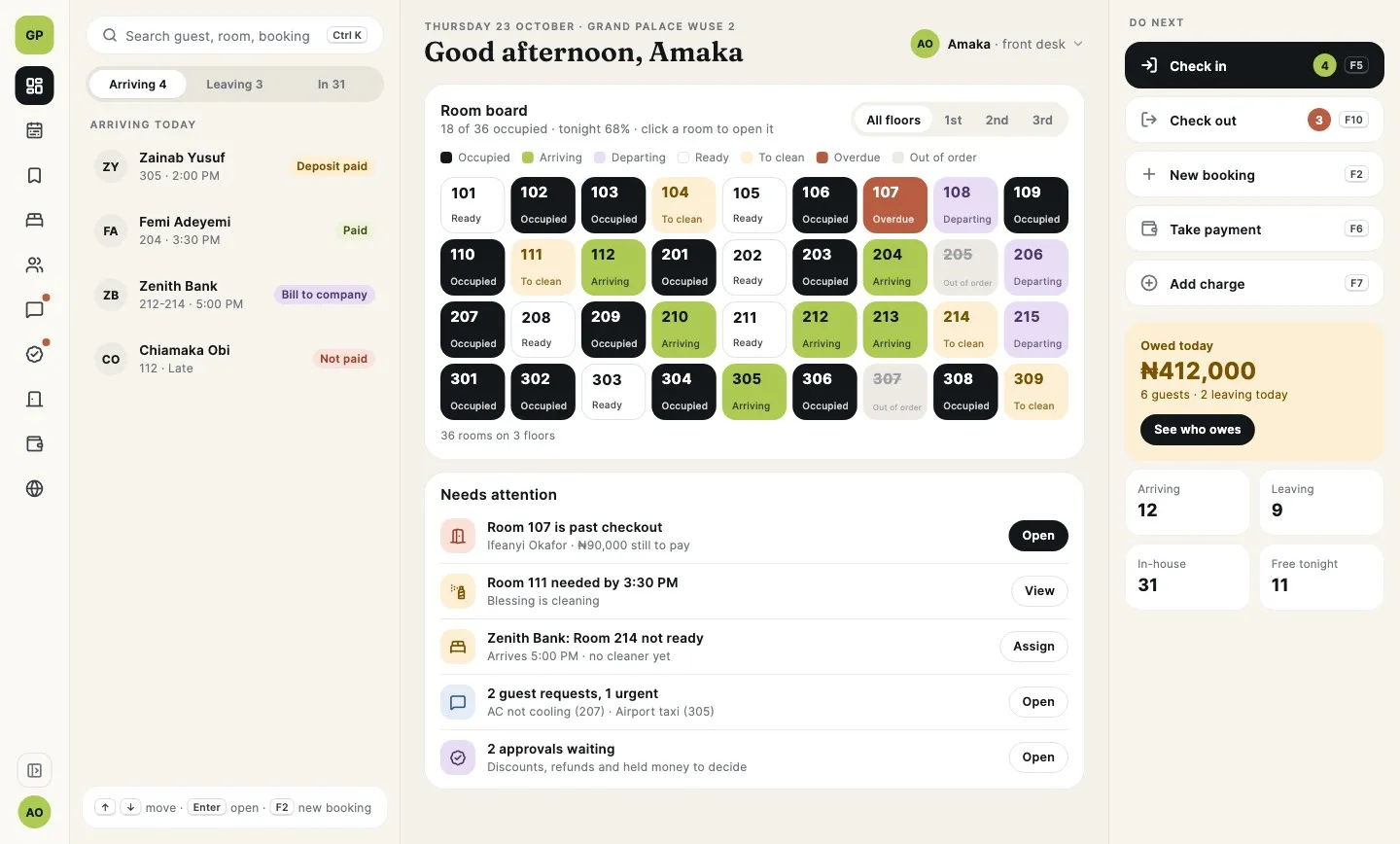
The front desk and POS till for your reception computer. Bookings, check-in, payments and in-house guests, and it keeps working when the internet drops.

  • Arrivals, check-in, check-out and in-house guests on one screen
  • A POS till for reception sales, or a computer set up as the till for one outlet
  • Works offline and sends everything once the connection is back
  • A manager sets up the desk once, then staff switch with their own PIN
Download for Windows Keverna-Desk-Setup-1.1.4.exe · 16.0 MB

Requirements

  • Windows 10 or 11, 64-bit
  • No administrator rights needed. It installs for the person signed in to Windows
  • Internet for the first set-up and to sync
  • A Keverna account with the manager, front desk or reservation officer role to set it up
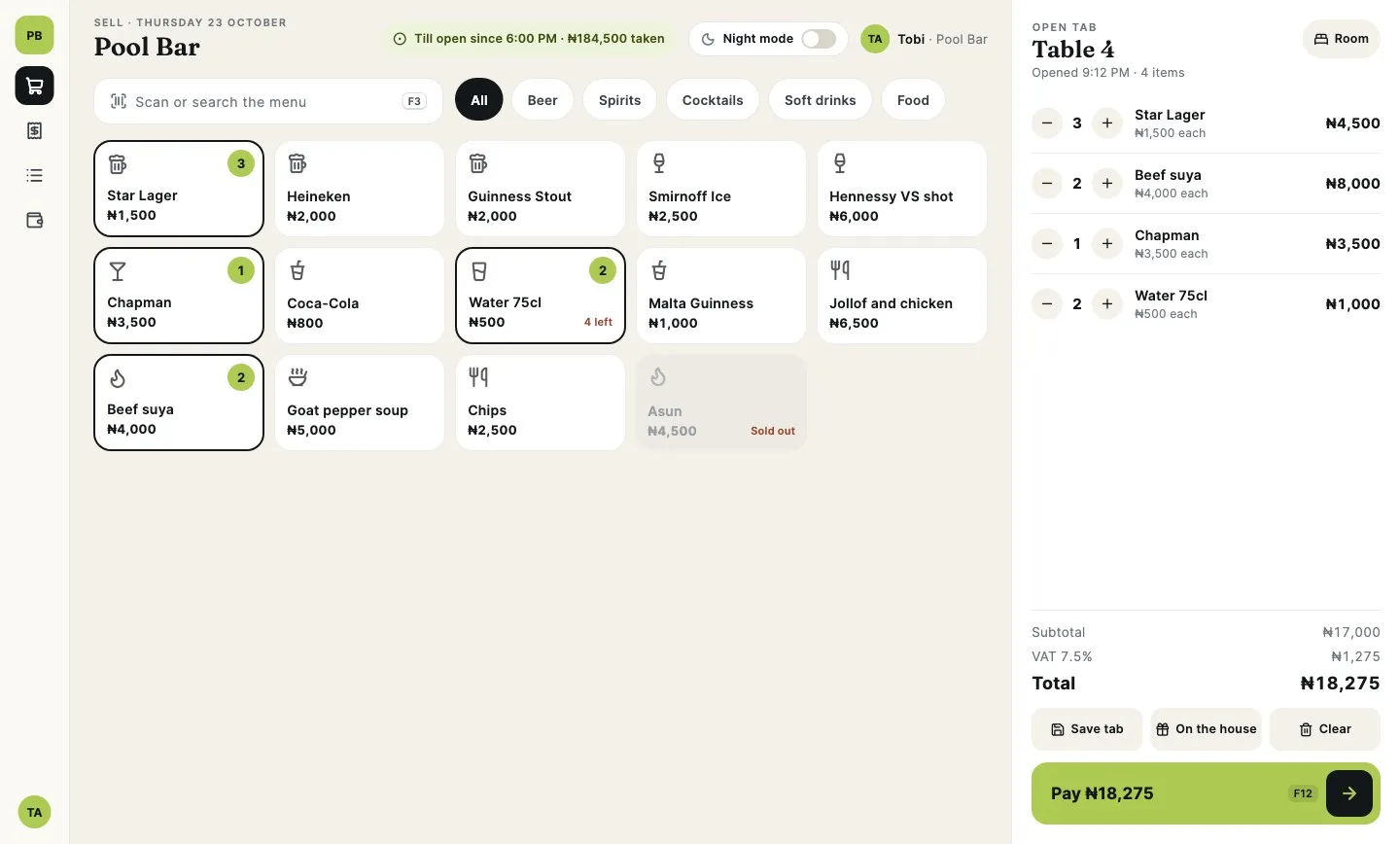
Keverna Desk POS till selling a bar tab

Keverna for Hosts

Android app

Your property on your phone, for owners, managers, front desk and reservation officers. See the day at a glance and handle guests from anywhere.

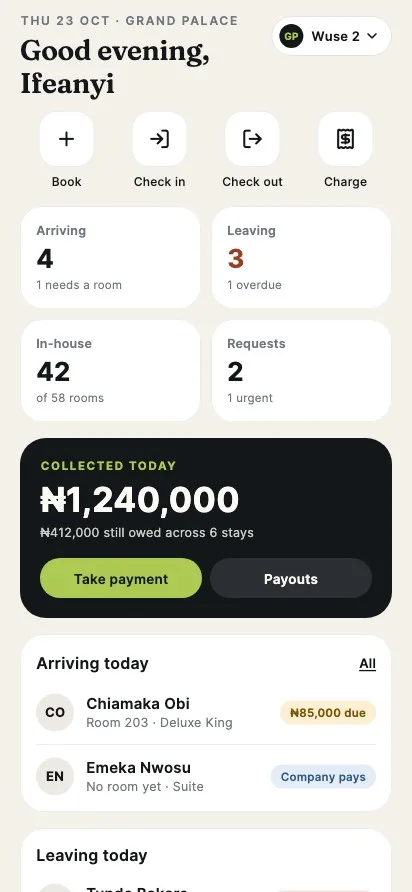
  • Today at a glance: arrivals, departures, rooms and money in
  • Check guests in and out, take payments, add charges and extend stays
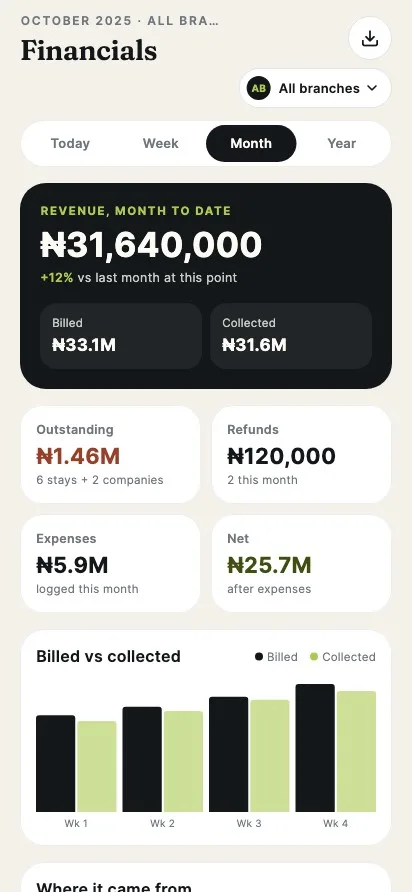
  • Owner reports for financials, occupancy and payouts, plus a daily summary to share on WhatsApp
  • Unlocks with a PIN or fingerprint, and keeps your changes safe on a weak signal
Coming soon

The Android app is not available to download yet. Until then, the Keverna dashboard works in your phone's browser.

Sign in on the web

Requirements

  • Android 7.0 or later
  • Sign in with your Keverna email and password, or your staff phone number and PIN
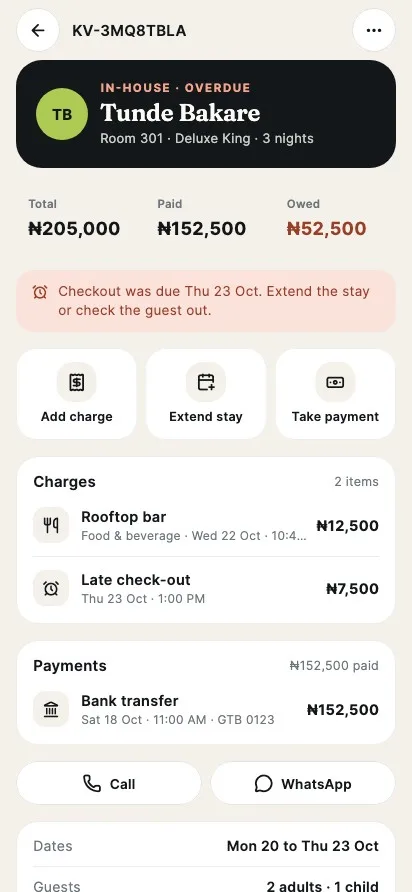
An in-house booking in Keverna for Hosts
Owner financials in Keverna for Hosts

Latest release

Keverna Desk 1.1.4

Released 26 Oct 2026

Download

What's new in 1.1.4

  • POS custom items (web + desk), Keverna Stays on keverna.ng (off until
  • MARKETPLACE_DOMAIN is set), desk release version checks, update loop
  • guard, withdraw and roll back;

Release details

Version
1.1.4
Size
16.0 MB
Released
File
Keverna-Desk-Setup-1.1.4.exe
SHA-256
676f07930ab8…6ac027d3
Show the full checksum 676f07930ab831e25ba2995247424d2bdd6a7538b5c7b278114fda3a6ac027d3

Install

Up and running in a few minutes.

Keverna Desk on Windows

  1. Download the installer

    Use Download for Windows above. The file is called Keverna-Desk-Setup-1.1.4.exe.

  2. Run the installer

    Open the file from your Downloads folder and follow the steps. It installs for your Windows user, so you do not need an administrator.

    Until the app is code signed, Windows may show "Windows protected your PC". Select More info, then Run anyway.

    On Windows 11, if it says "Bad Image" or Smart App Control blocked Keverna Desk, see what to do.

  3. Set up this desk

    Open Keverna Desk. A manager, front desk or reservation officer signs in with their Keverna email and password, picks the branch, then chooses Front desk or POS till for one outlet.

  4. Staff unlock with their PIN

    After set-up, each person unlocks the desk with their own PIN. The PIN is set for each staff member in the web dashboard.

Keverna for Hosts on Android

  1. Get the app

    Open this page on your Android phone and tap Get the Android app. If the link downloads an APK file, Android may ask you to allow installs from your browser.

  2. Sign in

    Use your Keverna email and password, or your staff phone number and PIN. If your account works at more than one property, pick the one you want.

  3. Choose a quick unlock

    Set a 4-digit PIN, or use your fingerprint, so opening the app next time takes a second. It locks itself after five minutes in the background.

Questions

Good to know.

How does Keverna Desk stay up to date?

It checks for a new version when it opens and every hour after that. The update downloads in the background, and you choose when to restart. Installing takes about a minute and open sales and check-ins finish first.

Which accounts can sign in?

Any staff account on a Keverna property. A manager, front desk or reservation officer sets up a desk, then the team unlocks it with their PINs. Keverna for Hosts is for owners, managers, front desk and reservation officers.

Does it work without internet?

Yes. Keverna Desk keeps check-ins and sales going when the connection drops and sends them once it is back. The first set-up and sign-in need internet.

Windows says "Bad Image" or Smart App Control blocked it

Windows 11 computers with Smart App Control turned on only run signed apps, and Keverna Desk is not signed yet. Until it is, you can turn Smart App Control off: open Windows Security, then App & browser control, then Smart App Control settings, and choose Off. It cannot be turned back on without resetting Windows, so you may prefer to wait for the signed version or talk to our team. Once Keverna Desk is signed, it just works with Smart App Control on.

How can I check the download?

Compare the SHA-256 checksum on this page with the file you downloaded. In PowerShell, run Get-FileHash followed by the installer's name.

Where can I get help?

Message us on WhatsApp with the button on this page, or email hello@keverna.com. Our team can also install Keverna Desk with you. Talk to our team.

Do I need the apps to use Keverna?

No. Everything also works in the web dashboard. The apps make the front desk faster and keep you close to your property on the move. See what Keverna does.

Want a hand setting up the desk?

Our team can install Keverna Desk with you and get your front desk running on it.

Talk to our team